


InShot for Corporate Video Production: Dive into its Pro Features & Workflow
In the high-stakes world of corporate video production, we are often glued to our desktop workstations. We rely on Adobe Premiere Pro, DaVinci Resolve, and After Effects to deliver the cinematic quality, our clients expect. (Hint: InShot)
But the landscape is shifting. Clients now demand real-time coverage, “Behind the Scenes” (BTS) reels, and instant social media updates during events. You cannot always wait to offload footage to a RAID drive and render proxies. Sometimes, you need to shoot, edit, and publish from the venue floor.
While it started as a simple photo editor, InShot has evolved into a powerhouse mobile non-linear editor (NLE). It bridges the gap between casual social posting and professional on-the-go content creation. This app proves that high-quality and professional assets can originate entirely from a smartphone.
In this deep dive, we explore how professional video makers can leverage InShot to maintain quality while maximizing speed and efficiency.
Table of Contents
- Why InShot for Corporate Videos?
- Key Features for the Professional Workflow
- Step-by-Step Guide: Creating a Corporate Social Cut
- The Verdict: Free vs. Paid (InShot Pro)
- Limitations to Keep in Mind
- Conclusion
- Frequently Asked Questions (FAQs)
Why InShot for Corporate Videos?
For a production company, InShot is not for replacing desktop editing; but to provide more agility. This app allows fast turnaround times, as the video is recorded and edited only using a smartphone. This agility provides you with certain benefits like:
- Speed to Market: InShot allows you to perform an initial edit and export a polished 4K video in minutes and not in hours.
- Platform Optimization: The app is built with social media ratios in mind. It natively handles 9:16 (vertical) for Reels/Shorts and 4:5 (portrait) aspect ratios better than most traditional desktop NLEs.
- Client Delighters: Sending a client a stylized “teaser” of the shoot while you are still on set is a powerful value-addition. This showcases your immediate capabilities and engagement. It’s all about agility and delivering maximum value quickly.

Key Features for the Professional Workflow
InShot has tools that rival desktop software if you know where to look.
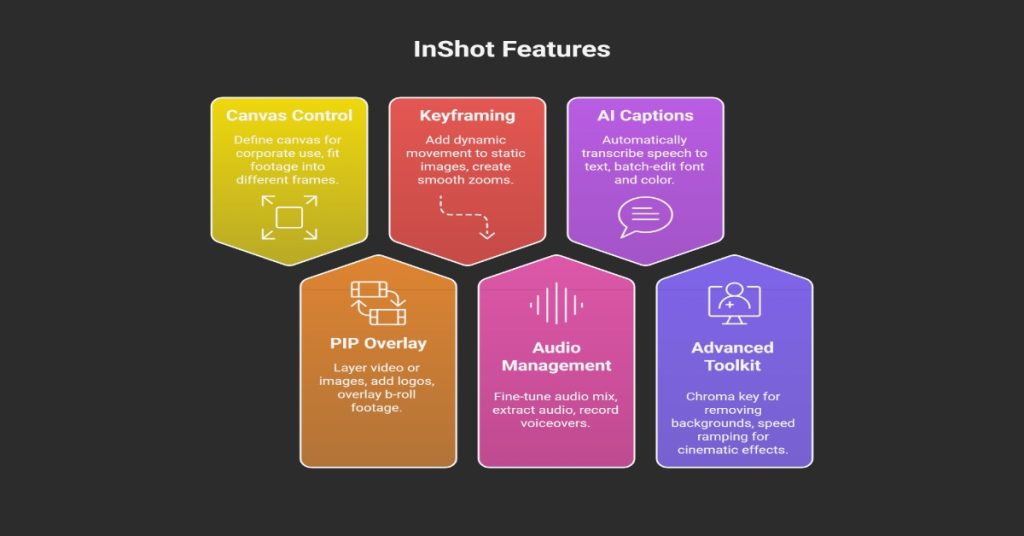
1. Canvas & Aspect Ratio Control
InShot’s first step is defining the “Canvas.” For corporate use, this is critical. You can take 16:9 footage from your main camera and instantly fit it into a 9:16 frame for Reels. You can use the “Zoom” or “Blur Background” features to fill the negative space professionally, to maintain a clean and branded look.
2. P.I.P (Picture-in-Picture) Overlay and Blends
This is the game-changer for sophisticated branding and multi-cam simulation. The PIP feature allows you to layer video or images over your main timeline, supporting up to two concurrent video layers.
- Branding: Add a corporate logo bug (transparent PNG) and use keyframes to make it fade in and out.
- Interview Coverage: Overlay b-roll footage while an interviewee is talking, simulating a multi-cam edit without leaving the venue.
- Creative Effects: Use the Mixture/Blend modes (like Screen, Multiply, or Overlay) to seamlessly blend graphic elements or light leak effects over your footage.
3. Keyframing and Smart Tracking
Yes, InShot supports keyframes. You can add dynamic movement to static images or create smooth zooms on video clips.
- You can use Keyframes to animate a screenshot of a client’s website or to add a subtle “Ken Burns” effect to architectural photos. This will give your still images, life, grabbing attention of the viewers.
- For social cuts, you can use the Smart Tracking feature to automatically follow a moving object (e.g., a speaker walking across the stage) with a text box or an arrow graphic, dramatically increasing viewer engagement.
4. Robust Audio Management
Bad audio kills every video. InShot allows you to fine-tune your audio mix:
- Extract Audio: Pull audio from existing video files for use in a different sequence.
- Voiceovers: Record high-quality narration directly in the app.
- Multi-Track: Layer licensed background music (reduce volume to 10-15%) under voiceovers or sound effects.
- Voice Enhance / Denoise: In newer versions, use the Voice Enhance tool to automatically reduce unwanted background noise and focus on dialogue clarity. It is a non-negotiable feature for event recordings.
Caution: Always import your own licensed tracks or use the commercial-free library options. The built-in free music library may be restricted for commercial projects due to copyright.
5. AI Auto Captions
InShot’s AI tool automatically transcribes speech to text in multiple languages. You can then batch-edit the font, color, and positioning to match client brand guidelines efficiently, ensuring 100% compliance for all digital platforms.
6. Advanced Toolkit: Chroma Key and Speed Ramping
InShot’s professional features are rapidly expanding, making it suitable for quick visual effects:
- Chroma Key (Green Screen): This tool allows you to instantly remove a solid background color (typically green or blue) from a PIP layer. This is invaluable for quickly adding a person or graphic element shot against a green screen onto a live backdrop for rapid content iteration.
- Speed Ramping: Beyond simple clip speed adjustments (0.2x to 100x), InShot supports Speed Ramping. This lets you create cinematic changes in momentum, slowing down for emphasis (e.g., a handshake) and speeding up for transition, all managed within a visual curve editor.
Step-by-Step Guide: Creating a Corporate Social Cut
Scenario: Let’s suppose you are at a client event and you need to post a 30-second recap reel to LinkedIn. This is how your workflow would look like:
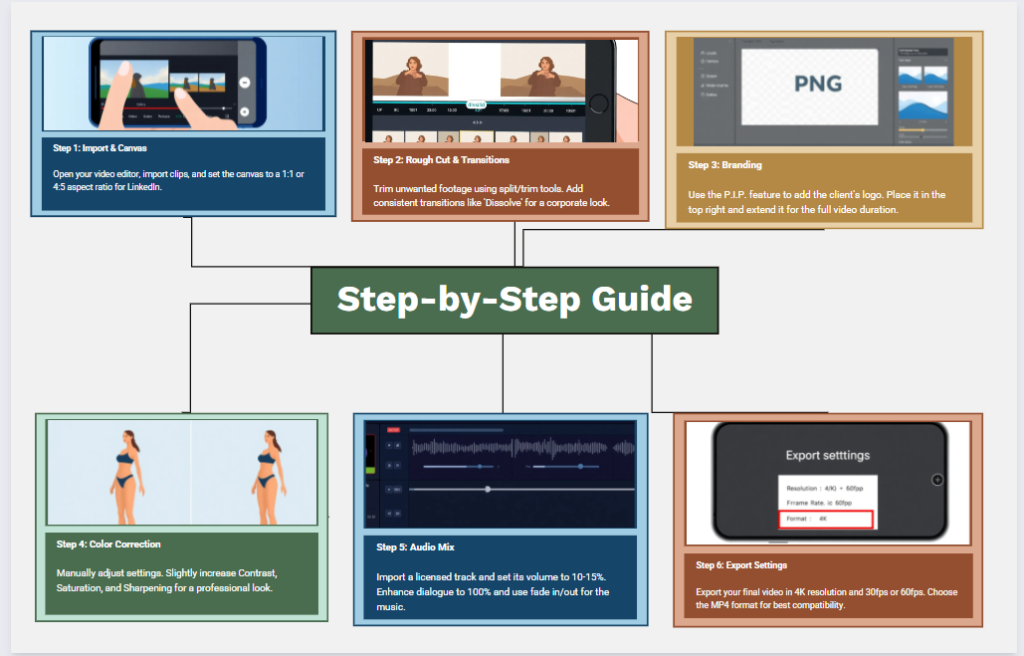
Step 1: Import & Canvas
Open InShot, select Video, and import your best clips. Immediately tap Canvas and select 1:1 (Square) or 4:5 for LinkedIn. Ensure your subject is at the center.
Step 2: The Rough Cut and Transitions
Use the Split and Trim tools to cut out “ums,” shaky camera moves, or dead air. Tap Transition (the small icon between clips) and select “Dissolve” for a corporate look or “Glitch/Wipe” for a tech startup vibe. Keep transitions consistent and don’t mix too many styles.
Step 3: Branding (The Pro Touch)
Tap P.I.P. and import the client’s logo (ensure its transparent PNG). Resize it and place it in the top right corner. Drag the layer specifically to last the entire duration of the video.
Step 4: Color Correction
Don’t rely on preset filters which can look cheap. Go to Filter > Adjust. Use these baseline settings as a starting point:
- Increase Contrast slightly (+5 to +8).
- Adjust Saturation to make colors pop (+5 to +10).
- Sharpen (+10) to help footage hold up against social media compression algorithms.
Step 5: Audio Mix
Import your licensed corporate track. Tap the track, select Volume, and set it to 10-15%. If there is dialogue, use the Voice Enhance tool, then set the dialogue track’s volume to 100%. Use the Fade In/Out handles on the music for a professional ending.
Step 6: Export Settings
Tap the Share/Export button to the top right. (In case of new updates, the button could be elsewhere on the screen.)
- Resolution: 4K (Always shoot and export high, let the platform compress it down).
- Frame Rate: 60fps (if you want smooth motion) or 30fps (standard).
- Format: MP4.
The Verdict: Free vs. Paid (InShot Pro)
For a corporate video, the Free version is strictly not recommended. Why? Because of the reasons stated below:
- The Watermark: The free version permanently stamps “InShot” on your video. This is unprofessional for clients’ deliverables and marketing assets.
- Ads: Dealing with pop-up advertisements severely slows down your workflow when you are trying to get things done quickly.
Whereas InShot Pro is a minimal operational expense for a business. It unlocks all essential professional features like:
- No Watermark
- All Transition Packs: Including Glitch, Ripped Paper, and Paint effects, essential for modern editing styles.
- Unlimited Assets: Stickers, fonts, and effects.
- 4K 60fps Export: Unrestricted access to the highest quality export settings.
- Advanced Tools: Chroma Key, Smart Tracking, and AI features like Auto Background Removal.
Here are the prices of the app: (approximate values as per the latest dollar-INR values)
| Feature | InShot Pro Price (Estimated INR) | Access |
| Annual Subscription | ₹ 1,699 / year | Unlocks all features, transitions, and assets for a year. |
| Lifetime License | ₹ 4,299 (One-Time Payment) | Permanent access to all current and future Pro features. |
Limitations to Keep in Mind
While InShot is powerful, it is not meant to be a replacement for your desktop NLE. There is certain heavy lifting, which can be done through desktop software only. Like:
- Color Grading Depth: You cannot use custom professional LUTs (Look-Up Tables) or accurately grade Log footage as you could in DaVinci Resolve.
- Complex Multi-Layering: While PIP exists, complex multi-track editing (A-roll, B-roll, Graphics, text layers, SFX) becomes messy on a phone screen.
- File Management: The app can create temporary duplicates in your phone storage, which can fill up space quickly during multi-day shoots. Therefore, you must ensure your device has ample free space.
Conclusion
InShot is the “Swiss Army Knife” of the corporate video world. It won’t replace your scalpel. But when you need to cut something fast, effective, and clean for immediate social media distribution, it is the most powerful tool in your pocket.
Challenge your team to produce a “Same-Day Edit” using only InShot. You might be surprised by the speed, quality, and responsiveness you can add to your client offering.
Read More
The Ultimate Guide to 5 Types of Storyboarding for Corporate Video Production

Video vs Text: Which Content Format Wins for Engagement & Conversions?

Understanding the Importance of Corporate Video Editing for Brands
Frequently Asked Questions (FAQs)
Q1- What are the disadvantages of InShot?
Its primary drawbacks relate to advanced production and platform limitations. The biggest disadvantage for professional users is the single-track timeline, which limits complex editing, overlays, and color grading compared to desktop software.
Q2- Is InShot good for beginners?
Absolutely. InShot is consistently praised as one of the best video editing apps for beginners. Its interface is highly intuitive, making it extremely easy to learn and navigate. You can perform all essential functions like trimming, cutting, adding music, and applying filters with simple taps, making it ideal for anyone.
Q3- How do I remove the InShot watermark?
You have two options for removing the InShot watermark:
- Free Method: When you see the watermark on your video, tap the “X” icon next to it. You will be prompted to choose “Free Remove,” which requires you to watch a short video advertisement. Once the ad finishes, the watermark will be removed from that export.
- Paid Method: Subscribe to InShot Pro, which automatically removes all watermarks and ads from your projects and unlocks premium features.
Q4- How much does InShot cost?
InShot operates on a freemium model. The app is free to download and use with essential features (but includes a watermark and ads). The premium subscription, InShot Pro, unlocks all features, filters, and materials. It is typically priced as follows: (prices are approximate and may vary by region):
- Monthly: ~$4.99
- Yearly: ~$19.99
- Lifetime (one-time purchase): ~$49.99
Q5- How do I download InShot?
You can download it like any other mobile app. To get InShot, simply go to the official app store for your device and search for “InShot – Video Editor”:
- For Apple devices, download it from the Apple App Store.
- For Android devices, download it from the Google Play Store.
You can also download InShot for Windows PC as well.
Q6- Is InShot for iPhone only?
No, InShot is designed for both major mobile operating systems. It is available on both iOS (for iPhone and iPad) and Android devices, making it accessible to a massive global audience of mobile video creators.
Q7- Is InShot a Chinese app?
The company behind the application, InShot Inc., is often listed with headquarters in Irvine, United States. However, the application’s original development and publishing history are tied to the Chinese developer QuVideo Inc., which remains a key part of its operational background. It is primarily considered a globally available mobile application developed by a company with ties to both the US and China.
